Tag: Legion Go

  • Your SD Cards Are Now Game Cartridges

    Your SD Cards Are Now Game Cartridges

    Here’s how I built a Switch-like experience on my handheld…

    One thing that always bothered me about Windows handhelds is how unstructured the experience feels compared to a real console.

    I have games installed across multiple SD cards. And every time I inserted one, I had to rescan everything from scratch — waiting, waiting, waiting — just to see which games were on it. And if the card wasn’t inserted? The game just wouldn’t launch. No explanation. No visual feedback. Nothing.

    What surprised me is that no launcher — not Steam, not the Xbox app, not any third-party tool — actually solves this cleanly. So I built something different.

    The idea: treat SD cards like Nintendo Switch cartridges

    On a Switch, you insert a cartridge and the game is just there.

    This is how that idea translates into a PC handheld:

    PC handheld launcher UI showing SD card-based game cartridges with icons indicating games stored on the same SD card
    Each icon represents a “cartridge” — grouping games that live on the same SD card.

    You swap it and the context changes instantly. That’s it. No rescanning. No waiting. No confusion.

    I wanted that exact feeling on my ROG Xbox Ally X and Legion Go — except with one key difference: my SD cards can hold multiple games. So I needed the whole library to update the moment a card is inserted or removed, not just one title.

    That’s what I built into ZenDeck.

    How it works

    Each SD card gets a hidden identity file — a small manifest stored at the root of the card that tells ZenDeck exactly which games live on it and what device they came from.

    The first time you insert a card into a device, there’s a small one-time setup: add the card as a storage location in Steam, then run a library scan in ZenDeck. That’s it — ZenDeck stores everything it finds. After that:

    Here’s what happens when you insert or remove an SD card:

    • Insert the card → games appear instantly at the top of Recent, marked with a cartridge icon. Steam and Xbox titles alike.
    • Remove the card → those games drop out of Recent and go visually dimmed in the library. Still visible, just clearly unavailable.
    • Swap to another device → insert the card, do the one-time setup — add it in Steam, run one library scan in ZenDeck — and from that point forward it’s fully automatic on that device.

    No launcher I’ve seen does this. Steam dims the title. The Xbox app hides it entirely. Neither one tells you why or where the game is.

    PC handheld game library showing games dimmed or unavailable when the SD card they are installed on is not inserted
    When the SD card isn’t inserted, games become dimmed or unavailable.

    The cartridge system adds that missing structure — it makes removable storage feel like a first-class part of the experience instead of an afterthought.

    The part I didn’t expect to love: physical covers

    Once the cartridge system was working, I realized the concept deserved something physical to match.

    So I designed printable covers for the SD card cases — styled like Nintendo Switch game boxes, sized exactly to fit (4.1 × 5.2 cm). Each cover shows the actual game artwork of every title stored on that card.

    Two layouts depending on how many games you have:

    Up to 4 games — 2×2 grid layout

    Here’s what a finished cover looks like:

    Printable SD card cartridge cover showing a 4-game layout with Cyberpunk 2077, Cult of the Lamb, God of War, and Spider-Man Miles Morales
    Example of a 4-game SD card cover — you can customize this template with your own games.

    5 or more games — hero + list layout

    If your SD card has more games, this layout scales much better:

    Printable SD card cartridge cover with a hero game and multiple smaller game thumbnails for large game libraries
    Layout for larger libraries — one featured game with the rest displayed below.

    The covers are made in Canva. I’m sharing both templates publicly so you can make your own — with your games, your SD cards.

    How to get your own copy:

    1. Create a free Canva account at canva.com if you don’t have one already
    2. Open the template link for your layout:
    3. Once open, go to File → Make a copy — this creates your own editable version without touching the original
    4. Replace the game images with your own (Steam cover art is available at cdn.cloudflare.steamstatic.com/steam/apps/[APP_ID]/header.jpg)
    5. Update the SD capacity text in the top bar
    6. Export as PDF for print and print on photo paper or glossy sticker stock

    Note: You need to be logged into your Canva account for the “Make a copy” option to appear. If you open the link without being logged in, the option won’t show up.

    Why this matters beyond the cool factor

    This isn’t just aesthetic. It solves real friction:

    What happens nowWhat happened before
    One-time setup per device, then insert card → games appear instantlyEvery single insert: rescan everything
    Remove card → library updates in real timeRemove card → games fail silently
    Swap devices → one-time setup, automatic forever afterSwap devices → start over every time
    Physical cover shows what’s insideNo way to know without checking
    Two SD card cases with printed cartridge-style covers showing game artwork, inspired by Nintendo Switch cartridges
    Physical SD cards labeled like cartridges — you can instantly see what’s inside without plugging them in.

    This ended up being one of my favorite parts of the whole system.

    The cartridge metaphor works because it maps to something people already understand intuitively. You don’t need to explain it. You just insert the card and it works.

    What this feels like in practice

    I keep a 256 GB card with Cyberpunk 2077, God of War, Spider-Man: Miles Morales, and Cult of the Lamb. I keep a 512 GB card with 12 more. When I want to switch what I’m playing, I swap the card. That’s it.

    Fast, physical, and genuinely console-like — on hardware that shipped with a desktop OS and zero of this thinking built in.

    If you’re building for Windows handhelds, rethink not just performance. Rethink how the user interacts with their games. That’s where the real experience lives.

    Ready to set this up?

    If you want to try the SD card cartridge system on your Windows 11 handheld, start here:

    How to Set Up Your SD Card as a Game Cartridge

    How to Install ZenDeck from Scratch (Beginner Friendly Guide)

    Or download ZenDeck directly at zendeck.app
  • Hogwarts Legacy Ultra Settings on Legion Go – Real 5-Minute Performance Test

    Hogwarts Legacy Ultra Settings on Legion Go – Real 5-Minute Performance Test

    When I ran the built-in benchmark in Hogwarts Legacy on my Lenovo Legion Go, the game recommended:

    Ultra settings across the board.

    That sounds impressive — and if you’re new to PC gaming, you might assume:

    “If the game recommends Ultra, that must be the best experience.”

    But is it really optimized for a power-limited handheld device?

    I decided to test it properly.


    Test Setup

    To keep the comparison fair and realistic, both tests were done under identical conditions:

    • Device: Lenovo Legion Go
    • Resolution: 1600×1000
    • Refresh Rate: 144Hz
    • TDP: Fixed at 75% of the usable range
    • Duration: 5 minutes of real gameplay (not just the built-in benchmark scene)
    • Metrics captured using RTSS per-frame frametime history

    The only thing that changed was:

    • Benchmark Recommended Settings (Ultra)
    vs
    • ZenDeck Smart Profile (Quality profile)


    Results

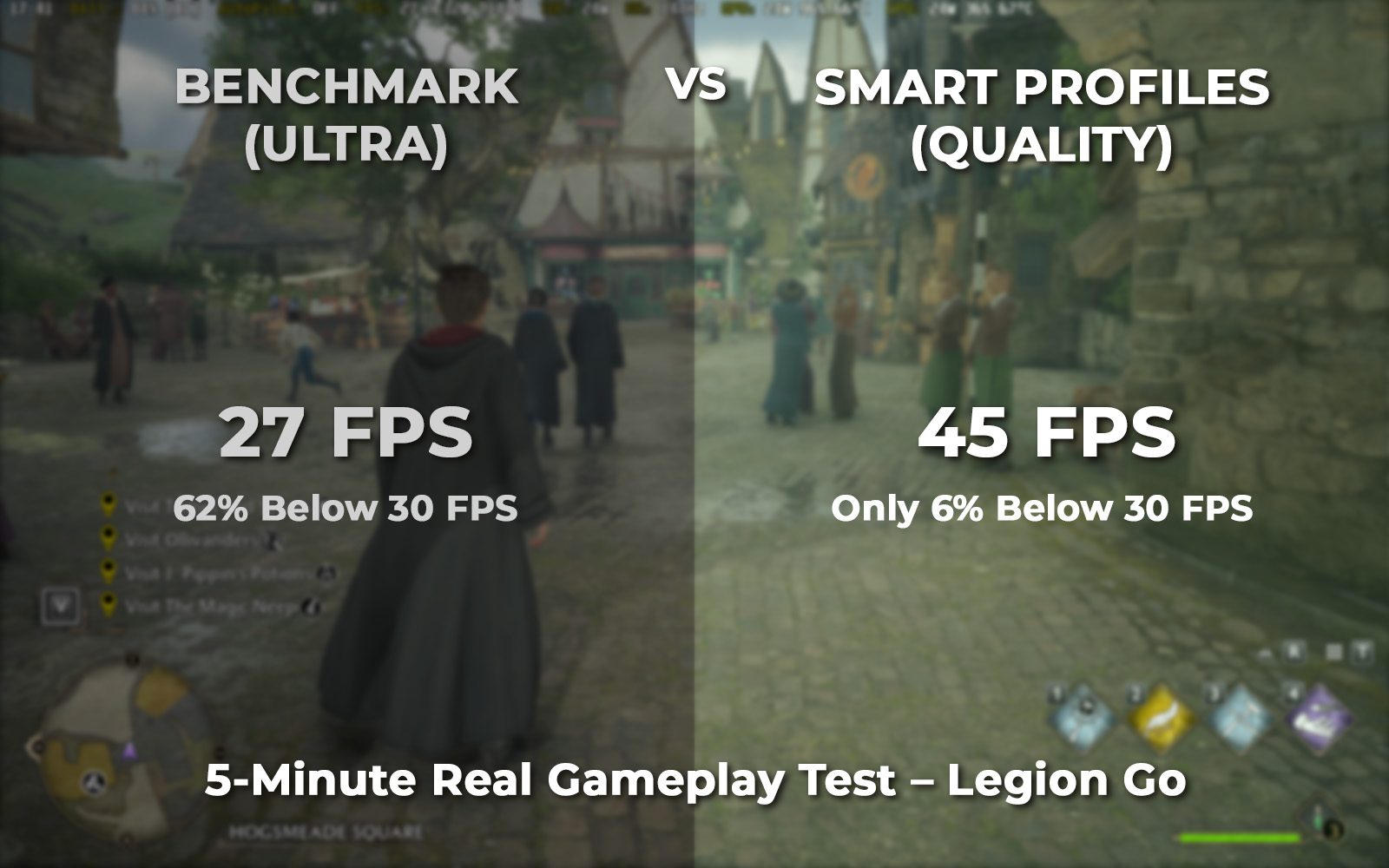
    MetricBenchmark (Ultra)Smart Profile (Quality)Improvement
    Average FPS27.2345.01+65%
    1% Low FPS16.2225.37+56%
    0.1% Low FPS7.1215.07+111%
    Time Below 30 FPS62.56%5.97%-90%
    Severe Stutter (>50ms)5.91%0.24%-96%

    What These Numbers Actually Mean

    If you’re not used to performance metrics, here’s the simple version:

    • Average FPS tells you overall performance.
    • 1% Low FPS tells you how bad the dips get.
    • Time Below 30 FPS tells you how often the game feels unstable.
    • Severe stutter (>50ms) means noticeable hiccups or mini-freezes.

    With benchmark Ultra settings:

    • The game spent over 62% of the time below 30 FPS.
    • Severe stutters were far more frequent.
    • 0.1% lows dropped to around 7 FPS — that’s very noticeable.

    With Smart Profile (Quality):

    • Average FPS jumped to 45.
    • Time below 30 FPS dropped to under 6%.
    • Severe stutter was nearly eliminated.

    Same hardware.
    Same power.
    Same resolution.

    Completely different experience.


    Why Did the Game Recommend Ultra?

    Game benchmarks are usually designed with desktop PCs in mind.

    They don’t fully account for:

    • Power-limited handheld devices
    • Sustained thermal constraints
    • Shared memory bandwidth
    • Long gameplay sessions instead of short benchmark scenes

    Ultra settings might look impressive in a benchmark run.
    But over 5 minutes of real gameplay on a handheld, they struggle.


    Interesting Side Note: Different Device, Different Recommendation

    On another device — the ROG Xbox Ally X — the same benchmark recommended:

    Everything set to Low.

    So on one device (Legion Go), the benchmark suggests Ultra.
    On another device (Xbox Ally X), it suggests Low.

    That inconsistency highlights something important:

    The built-in benchmark isn’t truly optimizing for sustained handheld gameplay.
    It’s reacting to hardware detection, not real-world power-constrained scenarios.

    And in both cases, the recommendation doesn’t necessarily lead to the best experience.


    What This Means for Handheld Players

    This is especially important if you’re new to PC gaming.

    If you’re just getting into handheld PC gaming and the game recommends certain settings, it’s completely natural to think:

    “The game knows best.”

    Most people won’t question it.

    They’ll assume the recommended settings are optimized for their device.

    In this case, that assumption would lead to:

    • 62% of gameplay below 30 FPS
    • Frequent dips
    • Noticeable stutter
    • An experience that feels unstable

    And for someone new to PC gaming, that might create the impression that:

    • The device is weak
    • The game is poorly optimized
    • Or that handheld PC gaming just “isn’t smooth”

    When in reality, the issue isn’t the hardware — it’s the tuning.


    Why Smart Profiles Performed Better

    The Smart Profile (Quality) didn’t just lower everything blindly.

    It’s tuned specifically for:

    • Power-limited environments
    • Sustained performance
    • Frame pacing stability
    • Real gameplay conditions

    Even using the Quality profile (not Performance), it delivered:

    • 65% higher average FPS
    • 90% reduction in time spent below 30 FPS
    • 96% reduction in severe stutter

    That’s not a small tweak.

    That’s the difference between “playable but frustrating” and “smooth and enjoyable.”


    Final Thoughts

    Built-in benchmarks can be helpful — but they’re not always optimized for handheld gaming PCs.

    On the Legion Go, Hogwarts Legacy recommended Ultra.

    In real gameplay at fixed power, that resulted in heavy instability.

    The Smart Profile (Quality) delivered dramatically better stability under the same exact conditions.

    If you rely only on in-game recommendations, especially as a newcomer to PC gaming, you might not be getting the best experience your device is capable of.

    And in power-constrained handheld systems, tuning matters more than presets.


    If you want to set up ZenDeck and enable Smart Profiles, you can follow the full step-by-step guide here: