Intro
If you’ve seen my recent Hogwarts Legacy comparison showing benchmark settings vs Smart Profiles, you might be wondering:
How do I actually install ZenDeck and use it?
This guide walks you through everything step-by-step — even if you’ve never used tools like this before.
No technical knowledge required.
What Is ZenDeck?
ZenDeck is a lightweight performance manager and game launcher built specifically for Windows handheld gaming PCs like:
- Lenovo Legion Go
- ROG Ally
- Other Windows handhelds (AMD based)
It helps you:
- Automatically apply optimized performance settings per game
- Dynamically adjust TDP based on real gameplay conditions
- Improve battery life without sacrificing stability
- Make Windows sleep behavior more reliable during gaming
- Eliminate constant manual tweaking
Think of it as adding a “console-like” experience layer on top of Windows.
Before You Start
Before installing ZenDeck, make sure:
- Your device is updated
- You have administrator privileges
- The game you want to use appears in the list of supported Smart Profiles
ZenDeck will automatically notify you if a game needs to be launched once before Smart Profiles can be applied.
Step 1 – Download ZenDeck
- Go to the official ZenDeck website
- Download the latest version
- Right-click the installer and select Run as Administrator
- Follow the installation steps
The installer will handle everything for you. When it finishes, ZenDeck will open automatically.
If Windows SmartScreen appears, click More Info → Run Anyway.
Step 2 – First Launch
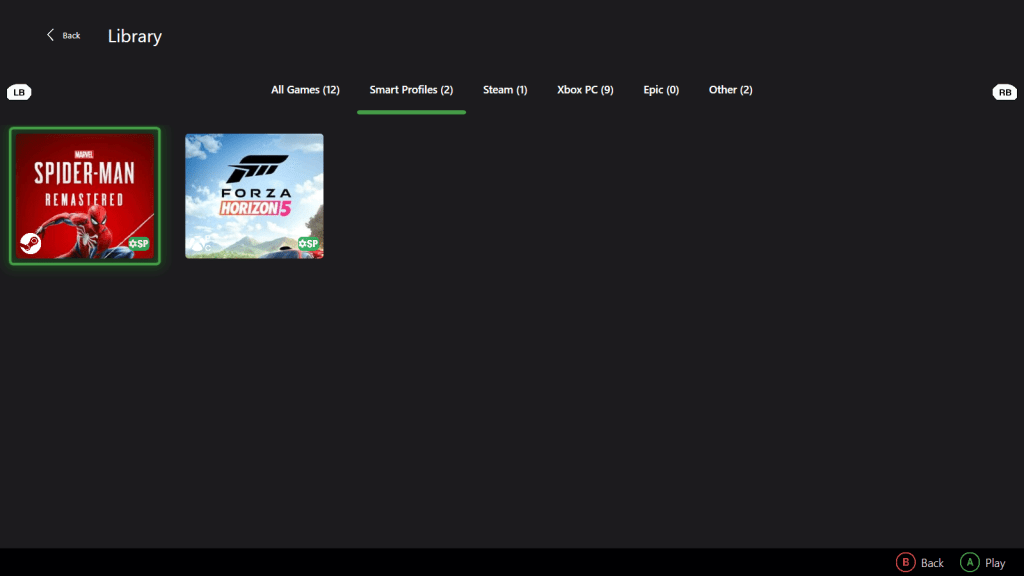
When you open ZenDeck for the first time, it will automatically scan your installed games from:
- Steam
- Xbox PC (Game Pass)
- Epic Games
- Non-Steam games added to your system
During this scan:
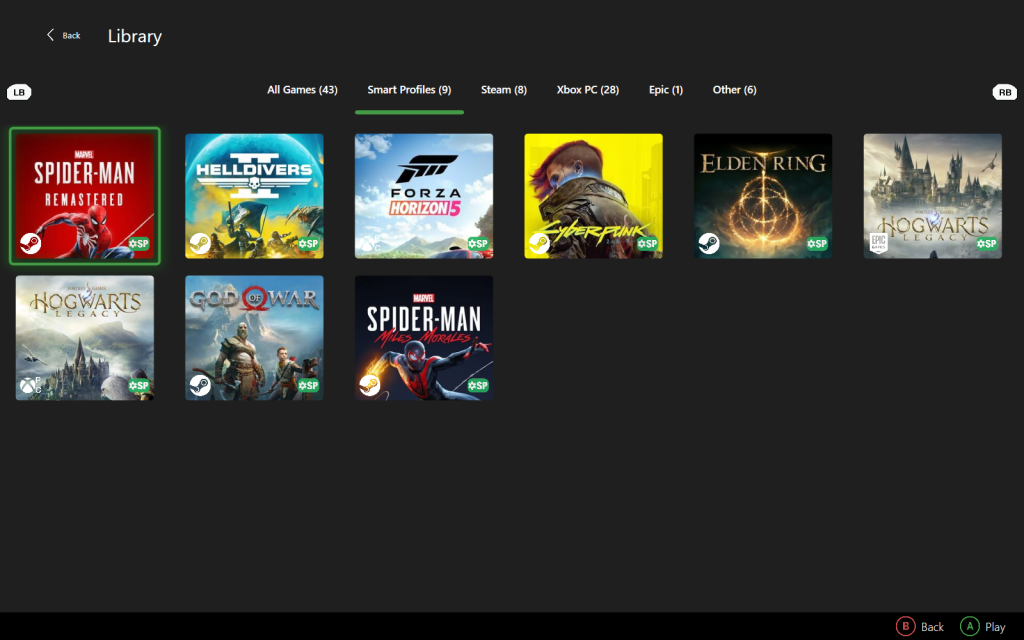
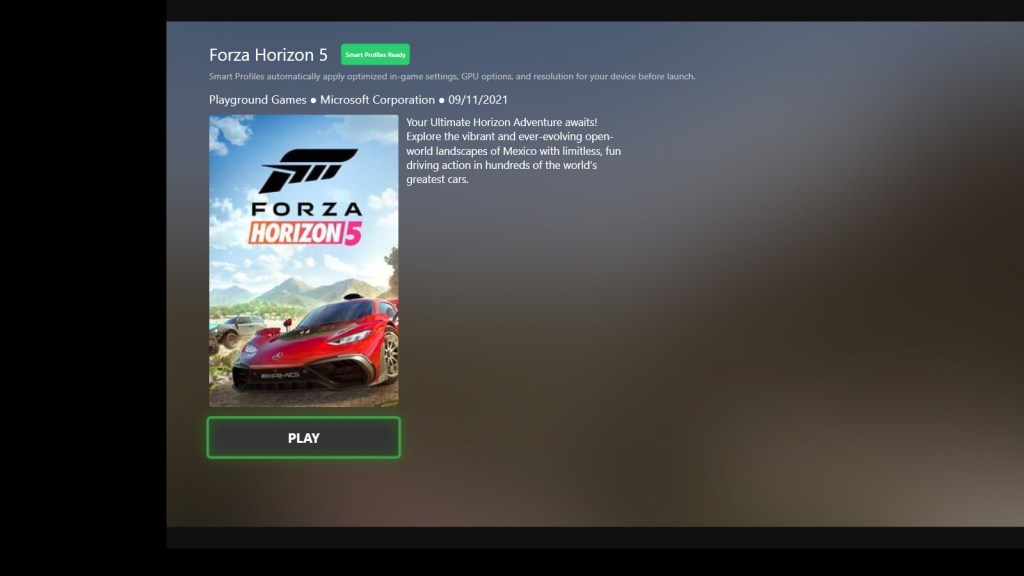
- ZenDeck detects which games support Smart Profiles
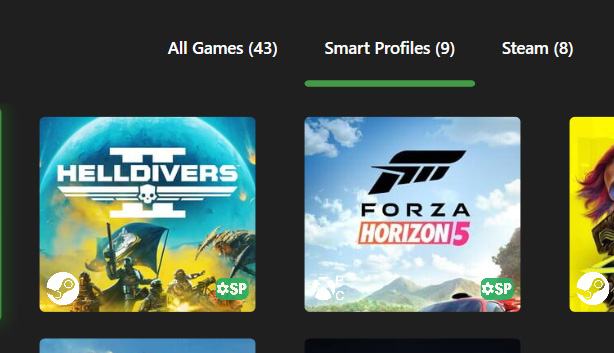
- Supported games will be marked with an “SP” badge
- You can also use the “Smart Profiles Ready” filter in the Library view to quickly see compatible titles
If a Game Needs to Be Initialized
Some games need to be launched once before Smart Profiles can be applied.
If ZenDeck shows a message saying the game must be run first:
- Simply launch the game
- Let it fully open
- Then close it
That’s it.
After that, ZenDeck will be able to apply Smart Profiles automatically.
Legion Go Users – One Important Setting
If you are using a Lenovo Legion Go, Legion Go S or Legion Go 2, make sure to do this before using ZenDeck:
- Open the Legion Space side menu
- Go to Thermal Mode
- Set it to Custom
The slider values do not matter.
ZenDeck requires Thermal Mode to be set to Custom in order to control TDP properly.
You only need to configure this once.
This is a Lenovo firmware requirement, not a ZenDeck limitation.
Step 3 – Using Smart Profiles
Once a supported game appears with the SP badge, you’re ready.
You have two ways to apply a Smart Profile:
Option 1 – From the Library
- Open ZenDeck
- Use the “Smart Profiles Ready” filter
- Select your game
- When prompted, choose Apply Profile
Option 2 – Simply Launch the Game
If ZenDeck is already running, just launch the supported game.
ZenDeck will detect it and prompt you to apply the Smart Profile.
Once applied, ZenDeck will automatically:
- Adjust resolution to the optimal preset
- Configure GPU features according to the Smart Profile
- Apply recommended performance tuning
No manual tweaking required every time you play.
Optional – Let ZenDeck Control TDP
If you also want ZenDeck to manage power automatically, you need to enable it:
- Open Settings
- Go to ZenDeck section
- Enable “Allow ZenDeck to control TDP”
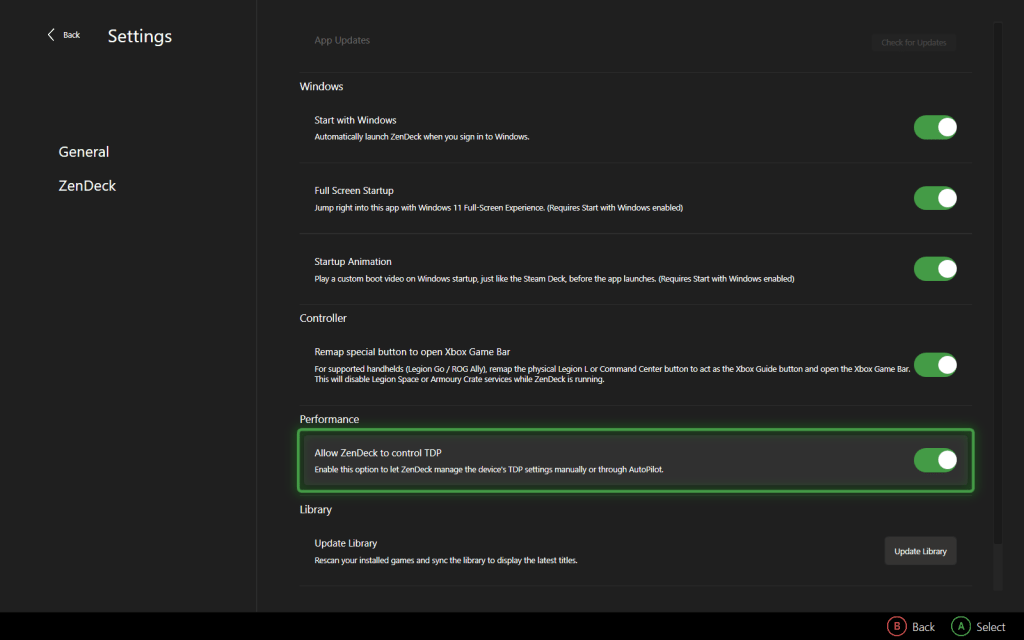
After enabling this, you can choose how TDP is managed:
- Fixed power profiles (Silent, Balanced, Performance, Custom)
- Or fully automatic control using AutoPilot Dynamic TDP
Optional – Using ZenDeck Pulse (In-Game Control)
ZenDeck Pulse is a widget inside the Xbox Game Bar that lets you manage performance while gaming.
To enable it:
- Go to Settings → Controller
- Enable “Remap special button to open Xbox Game Bar”
This will:
- Disable Legion Space (Legion Go)
- Disable Armoury Crate overlay (ROG Ally)
- Remap to open Xbox Game Bar:
- Legion L button (Legion Go)
- Command Center button (ROG Ally)
- View + Menu (Other handhelds without guide button)
Now you can access the ZenDeck Pulse widget during gameplay.
Inside ZenDeck Pulse you can:
- Select AutoPilot Dynamic TDP from the Power Profile dropdown
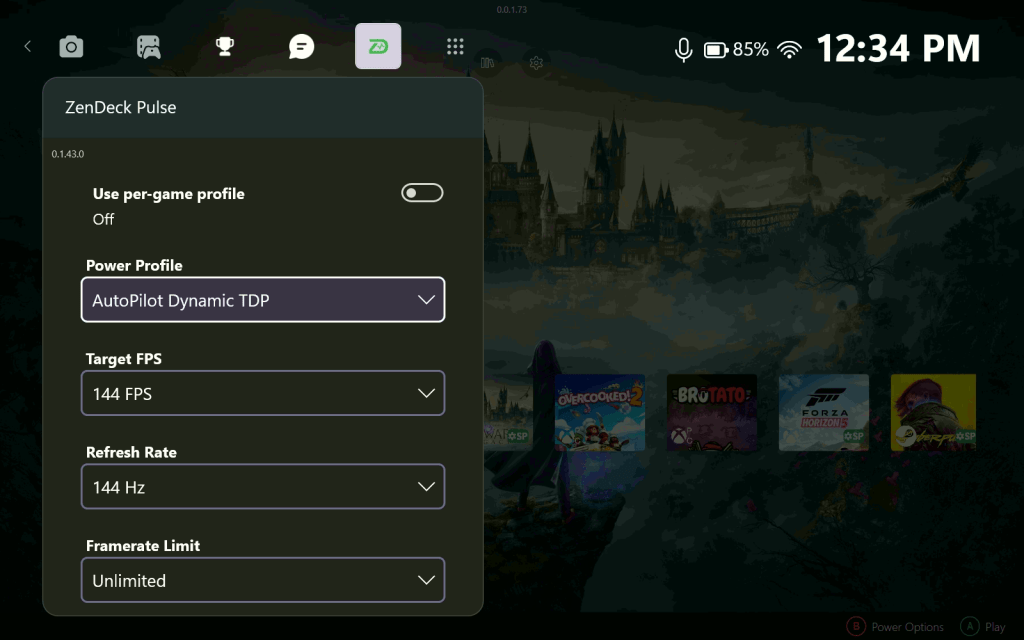
- Change Refresh Rate
- Adjust Resolution
- Set Frame Limit
- Enable FPS overlay
When AutoPilot Dynamic TDP is selected, ZenDeck automatically adjusts power based on:
- Game behavior
- FPS stability
- System conditions
Real Example: Hogwarts Legacy
In my recent Reddit post, I compared:
• Benchmark-recommended settings
vs
• Smart Profiles automatically applied settings
The result:
- More stable frametimes
- Better power efficiency
- Smoother gameplay
Smart Profiles focus on real-world stability, not just peak benchmark numbers.
Want to see the real performance difference?
I ran a controlled 5-minute gameplay test comparing:
• Benchmark Ultra settings
vs
• Smart Profile (Quality)
See the full performance breakdown here:
Hogwarts Legacy: Benchmark Ultra vs Smart Profile – 5-Minute Real Gameplay Test
You can watch the full comparison video and join the discussion here (300+ upvotes and counting):
Do I Need to Reconfigure Every Time?
No.
Once a Smart Profile is enabled:
ZenDeck remembers it.
The next time you launch the game, everything is applied automatically.
Common Questions
Does this work with every game?
Smart Profiles currently support selected games.
More are being added over time.
Is this safe?
ZenDeck does not modify game files.
It manages performance behavior externally.
Why does my antivirus show a warning?
Some antivirus programs may display a warning related to a driver called WinRing0.
This driver is used to enable low-level power control (TDP adjustment) on certain devices.
It is not malicious software.
Some security tools flag it because it allows hardware-level access, which is commonly associated with system utilities.
On Lenovo Legion Go (1/2/S), this driver is not used for TDP control.
If you are unsure, you can always verify the file’s digital signature and download ZenDeck only from the official website.
Final Thoughts
Windows handhelds are powerful — but they require too much manual tuning.
ZenDeck simplifies that.
Instead of tweaking settings every time, you just play.
If you haven’t tried Smart Profiles yet, this is the easiest way to start.
Ready to Try It?
Download the latest version of ZenDeck and try Smart Profiles in just a few minutes.
Once configured, you won’t need to tweak settings every time you play.
Download ZenDeck here:
 0degreez