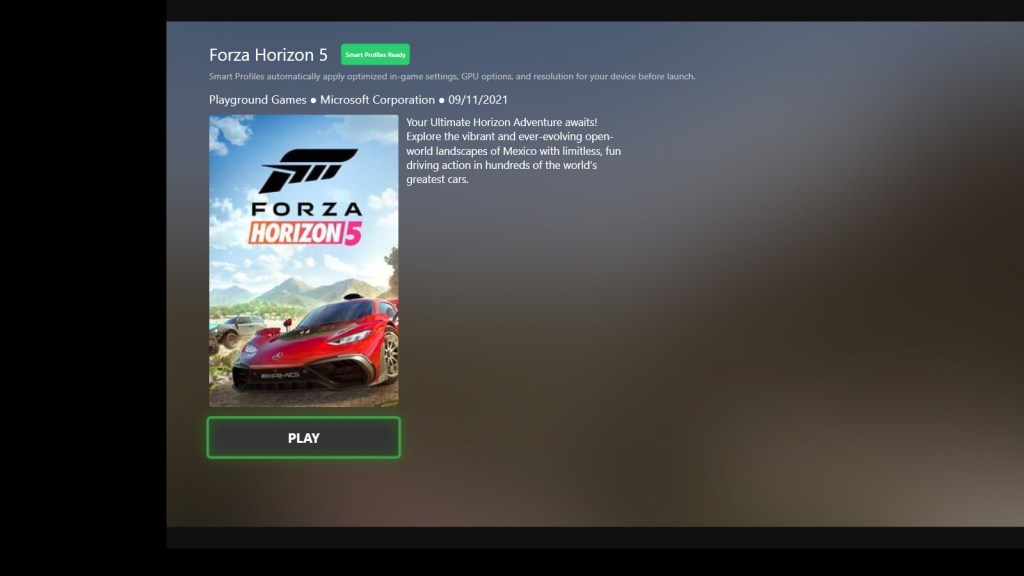
On a PC handheld, pressing Play often comes with a mental checklist.
If you’re new to Smart Profiles, this earlier post explains what they are and why they exist.
Did I change the resolution last time?
Are the in-game settings still right?
Is this game going to drain my battery in 30 minutes?
Smart Profiles exist to remove that friction — but what actually happens when you launch a game?
Not the technical implementation.
Not the hidden mechanics.
Just the experience and intent behind it.
The Moment You Press Play
The instant a game is launched, ZenDeck looks at the context of that session.
Not every launch is the same:
- Different games behave differently on handheld hardware
- Different devices have different limits
- Different sessions have different goals
ZenDeck treats launching a game as a decision point, not just an executable starting.
Is This Game Supported?
Some games are explicitly supported by AutoPilot Smart Profiles.
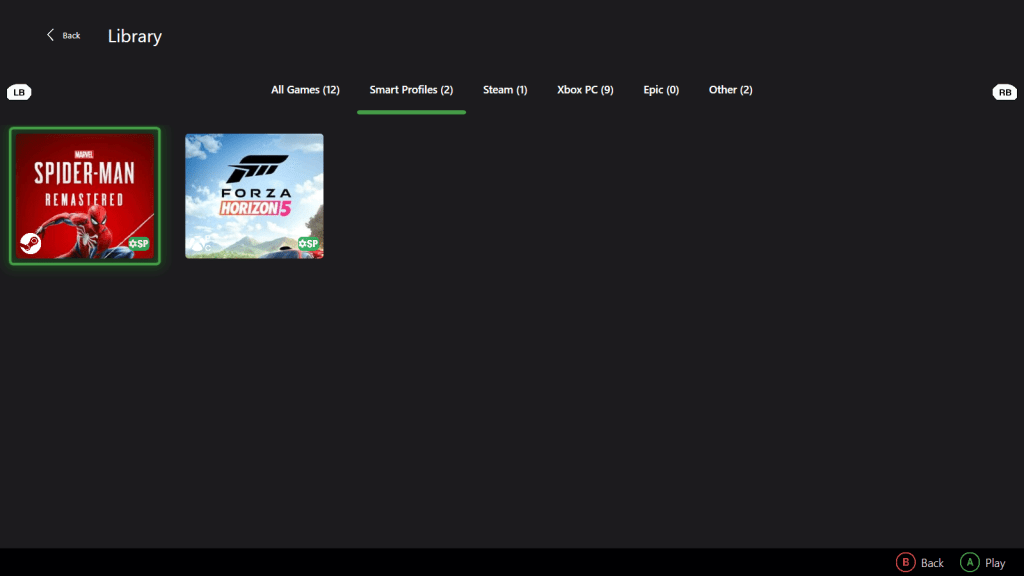
These titles are marked with an SP badge, which means:
- The game has been tested intentionally
- A Smart Profile exists for it
- ZenDeck knows how to prepare it properly for handheld play
If a game isn’t supported, nothing special happens — it launches normally, without interference.
Smart Profiles are additive, never intrusive.
Support is intentional and curated, not automatic or generic.
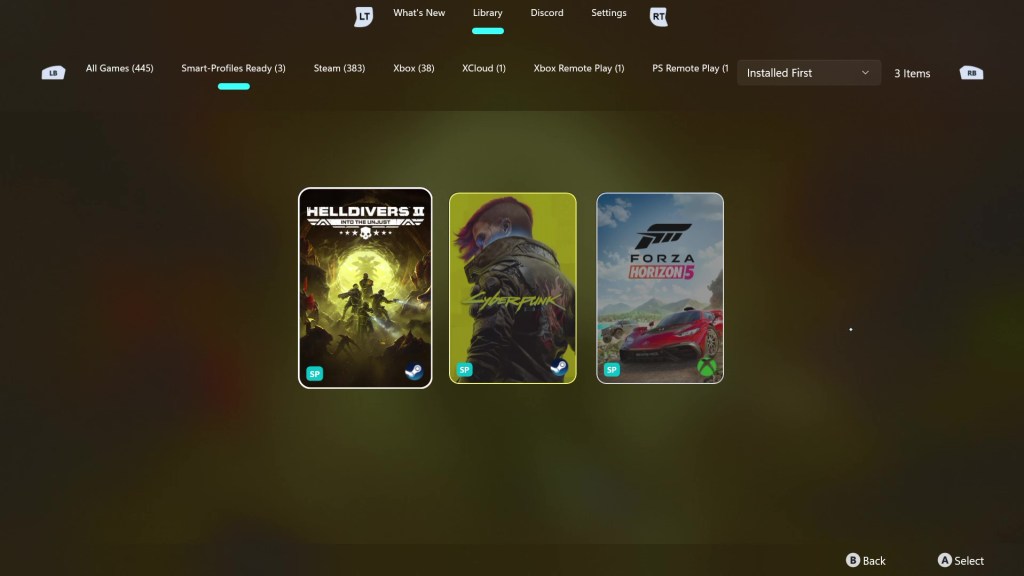
Supported titles are clearly marked within ZenDeck and on the project website.
Preparing the Game — Not Overpowering It
Smart Profiles don’t aim for maximum settings or brute-force performance.
Instead, they focus on starting the game in a sensible state for a handheld device:
- Graphics options aligned with limited power and thermals
- GPU features enabled only when they make sense
- Resolution adjusted when necessary
By the time the first frame is rendered, the game is already configured with efficiency in mind.
No menus.
No pop-ups.
No presets to tweak.
Want to see real-world proof?
If you’re curious how this translates into actual performance:
I ran a 5-minute real gameplay comparison in Hogwarts Legacy between:
- Benchmark Ultra settings
- Smart Profile (Quality)
The results were dramatically different in stability and smoothness.
You can read the full breakdown here:
Hogwarts Legacy Ultra vs Smart Profile – Real Performance Test
If you’d like a step-by-step walkthrough on how to install ZenDeck and enable Smart Profiles, you can follow this complete setup guide:
Step-by-Step Installation Guide for ZenDeck
Before Gameplay Even Begins
This is an important distinction.
Smart Profiles operate before gameplay, not during it.
They prepare the environment the game starts in, rather than reacting after performance problems appear.
That preparation is what allows everything else to work more smoothly.
This is also why Smart Profiles and Dynamic TDP don’t overlap — they do different jobs.
Smart Profiles vs Dynamic TDP
AutoPilot is made up of two complementary systems, each with a very different role.
Smart Profiles focus on preparation.
It decides how a game should start on a specific handheld device.
Dynamic TDP focuses on adaptation.
It manages power behavior in real time once the game is already running.
They don’t overlap, and they don’t compete.
One sets the baseline, the other continuously adjusts around it.
Together, they reduce the need for manual tuning without exposing extra controls to the player.
Not Every Session Needs Maximum Performance
Sometimes you’re at home, plugged in, chasing smooth visuals.
Other times, you’re on a couch.
Or on a train.
Or on a long flight, trying to play for hours without worrying about battery life.
The intent of the session changes — even if the game doesn’t.
Smart Profiles are designed with this flexibility in mind.
They’re not about pushing hardware to its limits, but about aligning the game with the context it’s being played in.
A more battery-conscious session may prioritize:
- Lower in-game settings
- Reduced power demands
- Stability over headroom
All without requiring the player to manage those tradeoffs manually.
This is the kind of experience Smart Profiles are designed to support.
What the User Never Has to Think About
When everything works as intended, the user never asks:
- Did I forget to change the resolution?
- Are GPU features enabled correctly?
- Should I lower settings for this device?
- Is this game draining more power than it should?
Those questions simply don’t come up.
The goal isn’t to expose more controls — it’s to remove decisions that shouldn’t be necessary in the first place.
 0degreez