Tag: PC handheld gaming

  • What are Smart Profiles?

    What are Smart Profiles?

    1. The Problem

    If you’ve used a PC handheld, you already know the drill.

    You install a game… and then spend the next 20–30 minutes tweaking settings.

    Most of the time, that means:

    • Searching for “best settings” on websites or YouTube
    • Trying to copy those settings manually into the game
    • Realizing they don’t perform the same on your device

    What works on another handheld might not work for you.

    Different hardware, different performance targets, different TDP used, different expectations.

    So you tweak. Test. Adjust. Repeat.

    Every. Single. Time.


    2. The Solution

    ZenDeck introduces Smart Profiles with community sharing, bringing the idea of Steam’s controller profiles to game settings and device optimization.

    Instead of manually configuring every game, you can:

    • Apply a pre-configured profile tailored for performance or quality
    • Share your own optimized settings with others
    • Benefit from configurations tested on real devices

    The goal is simple:

    Spend less time tweaking, more time playing

    Download ZenDeck and start using Smart Profiles: https://zendeck.app

    ZenDeck Smart Profiles list showing recommended and community profiles for a game on a PC handheld
    Browse recommended and community Smart Profiles and instantly apply optimized settings for your game.

    3. AutoPilot Rating (The Key Piece)

    Sharing settings is useful.

    But knowing which settings are actually good is what really matters.

    That’s where AutoPilot Rating comes in.

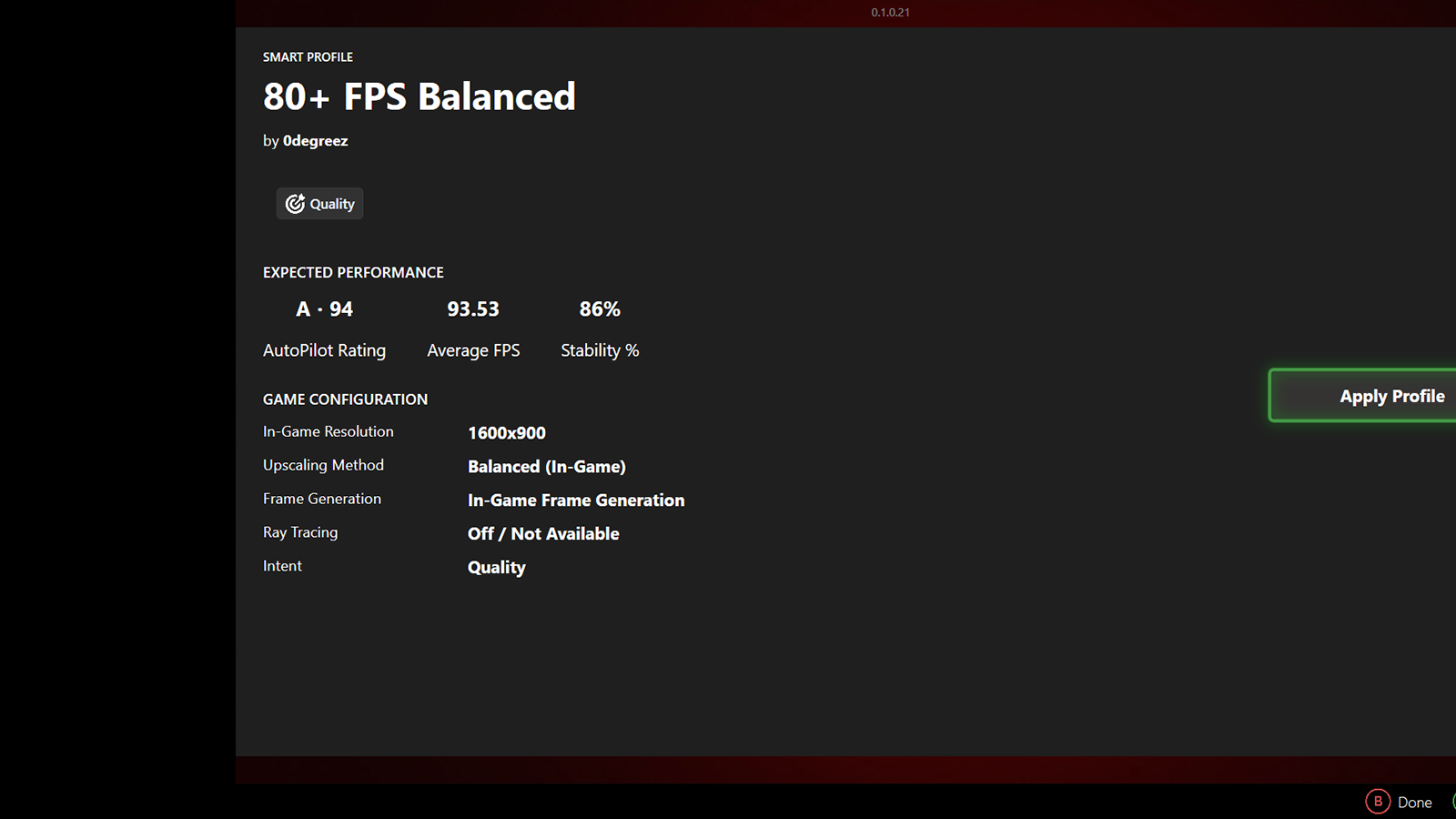
    ZenDeck Smart Profile showing AutoPilot Rating 94 with FPS and stability on a PC handheld
    Example of a Smart Profile with AutoPilot Rating, showing real performance data including FPS and stability.

    What it measures

    AutoPilot Rating is based on real performance data, including:

    • Average FPS
    • Stability (%)
    • 1% low FPS

    This isn’t guesswork or opinion-based.

    It’s data-driven evaluation

    How the rating is calculated

    AutoPilot Rating combines two key factors:

    • Performance → how fast the game runs (FPS)
    • Stability → how smooth and consistent the experience feels

    Performance measures how fast the game runs, based on average FPS.
    Stability evaluates how smooth and consistent the experience feels, taking into account frame pacing, stutter, and 1% lows.

    These values are combined into a single score that represents the overall gameplay experience, where:

    • Performance defines the baseline
    • Stability adjusts the result based on how smooth the experience is

    Understanding the rating

    The final result is presented as a letter grade, making it easy to understand at a glance:

    • A → Very smooth experience
    • B → Good, with minor inconsistencies
    • C → Playable, but noticeable drops or instability
    • D → Poor performance, not recommended

    What a good score means

    A higher AutoPilot Rating generally means:

    • More stable gameplay
    • Better frame consistency
    • A smoother overall experience

    It helps you quickly understand:

    “Will this actually run well on my device?”

    Device-aware ratings

    AutoPilot Rating is not universal across all devices.

    It is calculated using performance data from devices similar to yours.

    This means:

    • A profile may have a different rating on a Steam Deck vs a ROG Ally
    • Ratings are more relevant to your specific hardware class

    You’re not seeing generic scores, you’re seeing results that actually apply to your device.

    How it helps you choose

    Instead of:

    • Guessing between multiple configs
    • Watching long comparison videos

    You can:

    • Compare profiles using real performance data
    • Pick the one that best fits your preference (performance vs quality)

    Why this matters

    This changes how optimization works.

    Instead of every user figuring things out on their own:

    Optimization becomes something shared, tested, and improved over time


    4. What a Smart Profile Includes

    Each Smart Profile can define key performance-related settings, such as:

    • In-Game Resolution
    • Upscaling (In-Game or driver-based)
    • Frame Generation (in-game or driver-based)
    • Ray Tracing (On / Off)
    • Power / GPU behavior (managed automatically by AutoPilot)

    These settings are defined when a profile is created and allow ZenDeck to automatically apply performance optimizations at both the GPU and device level.


    5. A Console-Like Experience

    The long-term vision is simple:

    No more tweaking settings every time you install a game.

    With Smart Profiles and AutoPilot Rating:

    • Install your game
    • Apply a profile
    • Start playing

    Install → Apply → Play

    Get started:

    → How to apply a Smart Profile

    Want to contribute?

    → How to share a Smart Profile

    → How to contribute performance data for a Smart Profile

    Ready to try it?
    Download ZenDeck and experience Smart Profiles and AutoPilot Rating: https://zendeck.app

    ZenDeck launcher showing console-like gaming experience with Smart Profiles on a PC handheld
    Install, apply a Smart Profile, and play, no manual tweaking required.
  • How to Install ZenDeck from Scratch and Use Smart Profiles (Beginner Friendly Guide)

    How to Install ZenDeck from Scratch and Use Smart Profiles (Beginner Friendly Guide)

    Intro

    If you’ve seen my recent Hogwarts Legacy comparison showing benchmark settings vs Smart Profiles, you might be wondering:

    How do I actually install ZenDeck and use it?

    This guide walks you through everything step-by-step — even if you’ve never used tools like this before.

    No technical knowledge required.


    What Is ZenDeck?

    ZenDeck is a lightweight performance manager and game launcher built specifically for Windows handheld gaming PCs like:

    • Lenovo Legion Go
    • ROG Ally
    • Other Windows handhelds (AMD based)

    It helps you:

    • Automatically apply optimized performance settings per game
    • Dynamically adjust TDP based on real gameplay conditions
    • Improve battery life without sacrificing stability
    • Make Windows sleep behavior more reliable during gaming
    • Eliminate constant manual tweaking

    Think of it as adding a “console-like” experience layer on top of Windows.


    Before You Start

    Before installing ZenDeck, make sure:

    • Your device is updated
    • You have administrator privileges
    • The game you want to use appears in the list of supported Smart Profiles

    ZenDeck will automatically notify you if a game needs to be launched once before Smart Profiles can be applied.


    Step 1 – Download ZenDeck

    1. Go to the official ZenDeck website
    2. Download the latest version
    3. Right-click the installer and select Run as Administrator
    4. Follow the installation steps

    The installer will handle everything for you. When it finishes, ZenDeck will open automatically.

    If Windows SmartScreen appears, click More Info → Run Anyway.


    Step 2 – First Launch

    When you open ZenDeck for the first time, it will automatically scan your installed games from:

    • Steam
    • Xbox PC (Game Pass)
    • Epic Games
    • Non-Steam games added to your system

    During this scan:

    • ZenDeck detects which games support Smart Profiles
    • Supported games will be marked with an “SP” badge
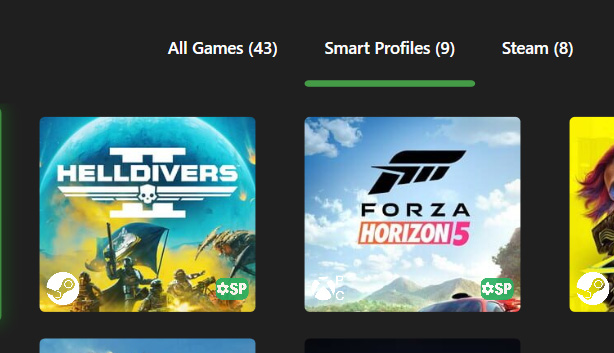
    • You can also use the “Smart Profiles Ready” filter in the Library view to quickly see compatible titles
    ZenDeck library view showing supported games marked with the SP badge and the Smart Profiles Ready filter enabled.
    Games that support Smart Profiles are marked with the SP badge and can be filtered using “Smart Profiles Ready”.

    If a Game Needs to Be Initialized

    Some games need to be launched once before Smart Profiles can be applied.

    If ZenDeck shows a message saying the game must be run first:

    • Simply launch the game
    • Let it fully open
    • Then close it

    That’s it.

    After that, ZenDeck will be able to apply Smart Profiles automatically.


    Legion Go Users – One Important Setting

    If you are using a Lenovo Legion Go, Legion Go S or Legion Go 2, make sure to do this before using ZenDeck:

    1. Open the Legion Space side menu
    2. Go to Thermal Mode
    3. Set it to Custom

    The slider values do not matter.

    ZenDeck requires Thermal Mode to be set to Custom in order to control TDP properly.

    You only need to configure this once.

    This is a Lenovo firmware requirement, not a ZenDeck limitation.


    Step 3 – Using Smart Profiles

    Once a supported game appears with the SP badge, you’re ready.

    You have two ways to apply a Smart Profile:

    Option 1 – From the Library

    1. Open ZenDeck
    2. Use the “Smart Profiles Ready” filter
    3. Select your game
    4. When prompted, choose Apply Profile

    Option 2 – Simply Launch the Game

    If ZenDeck is already running, just launch the supported game.

    ZenDeck will detect it and prompt you to apply the Smart Profile.


    Once applied, ZenDeck will automatically:

    • Adjust resolution to the optimal preset
    • Configure GPU features according to the Smart Profile
    • Apply recommended performance tuning

    No manual tweaking required every time you play.


    Optional – Let ZenDeck Control TDP

    If you also want ZenDeck to manage power automatically, you need to enable it:

    1. Open Settings
    2. Go to ZenDeck section
    3. Enable “Allow ZenDeck to control TDP”
    ZenDeck settings screen showing the Allow ZenDeck to control TDP toggle enabled in the Performance section.
    Enable this option to allow ZenDeck to manage power manually or through AutoPilot Dynamic TDP.

    After enabling this, you can choose how TDP is managed:

    • Fixed power profiles (Silent, Balanced, Performance, Custom)
    • Or fully automatic control using AutoPilot Dynamic TDP

    Optional – Using ZenDeck Pulse (In-Game Control)

    ZenDeck Pulse is a widget inside the Xbox Game Bar that lets you manage performance while gaming.

    To enable it:

    1. Go to Settings → Controller
    2. Enable “Remap special button to open Xbox Game Bar”

    This will:

    • Disable Legion Space (Legion Go)
    • Disable Armoury Crate overlay (ROG Ally)
    • Remap to open Xbox Game Bar:
      • Legion L button (Legion Go)
      • Command Center button (ROG Ally)
      • View + Menu (Other handhelds without guide button)

    Now you can access the ZenDeck Pulse widget during gameplay.


    Inside ZenDeck Pulse you can:

    • Select AutoPilot Dynamic TDP from the Power Profile dropdown
    ZenDeck Pulse widget inside Xbox Game Bar with AutoPilot Dynamic TDP selected as the active power profile.
    ZenDeck Pulse inside Xbox Game Bar with AutoPilot Dynamic TDP selected.
    • Change Refresh Rate
    • Adjust Resolution
    • Set Frame Limit
    • Enable FPS overlay

    When AutoPilot Dynamic TDP is selected, ZenDeck automatically adjusts power based on:

    • Game behavior
    • FPS stability
    • System conditions

    Real Example: Hogwarts Legacy

    In my recent Reddit post, I compared:

    • Benchmark-recommended settings
    vs
    • Smart Profiles automatically applied settings

    The result:

    • More stable frametimes
    • Better power efficiency
    • Smoother gameplay

    Smart Profiles focus on real-world stability, not just peak benchmark numbers.

    Want to see the real performance difference?

    I ran a controlled 5-minute gameplay test comparing:

    • Benchmark Ultra settings
    vs
    • Smart Profile (Quality)

    See the full performance breakdown here:

    Hogwarts Legacy: Benchmark Ultra vs Smart Profile – 5-Minute Real Gameplay Test

    You can watch the full comparison video and join the discussion here (300+ upvotes and counting):


    Do I Need to Reconfigure Every Time?

    No.

    Once a Smart Profile is enabled:

    ZenDeck remembers it.

    The next time you launch the game, everything is applied automatically.


    Common Questions

    Does this work with every game?

    Smart Profiles currently support selected games.
    More are being added over time.


    Is this safe?

    ZenDeck does not modify game files.
    It manages performance behavior externally.


    Why does my antivirus show a warning?

    Some antivirus programs may display a warning related to a driver called WinRing0.

    This driver is used to enable low-level power control (TDP adjustment) on certain devices.

    It is not malicious software.

    Some security tools flag it because it allows hardware-level access, which is commonly associated with system utilities.

    On Lenovo Legion Go (1/2/S), this driver is not used for TDP control.

    If you are unsure, you can always verify the file’s digital signature and download ZenDeck only from the official website.


    Final Thoughts

    Windows handhelds are powerful — but they require too much manual tuning.

    ZenDeck simplifies that.

    Instead of tweaking settings every time, you just play.

    If you haven’t tried Smart Profiles yet, this is the easiest way to start.


    Ready to Try It?

    Download the latest version of ZenDeck and try Smart Profiles in just a few minutes.

    Once configured, you won’t need to tweak settings every time you play.

    Download ZenDeck here:

    https://zendeck.app/