1. The Problem
If you’ve used a PC handheld, you already know the drill.
You install a game… and then spend the next 20–30 minutes tweaking settings.
Most of the time, that means:
- Searching for “best settings” on websites or YouTube
- Trying to copy those settings manually into the game
- Realizing they don’t perform the same on your device
What works on another handheld might not work for you.
Different hardware, different performance targets, different TDP used, different expectations.
So you tweak. Test. Adjust. Repeat.
Every. Single. Time.
2. The Solution
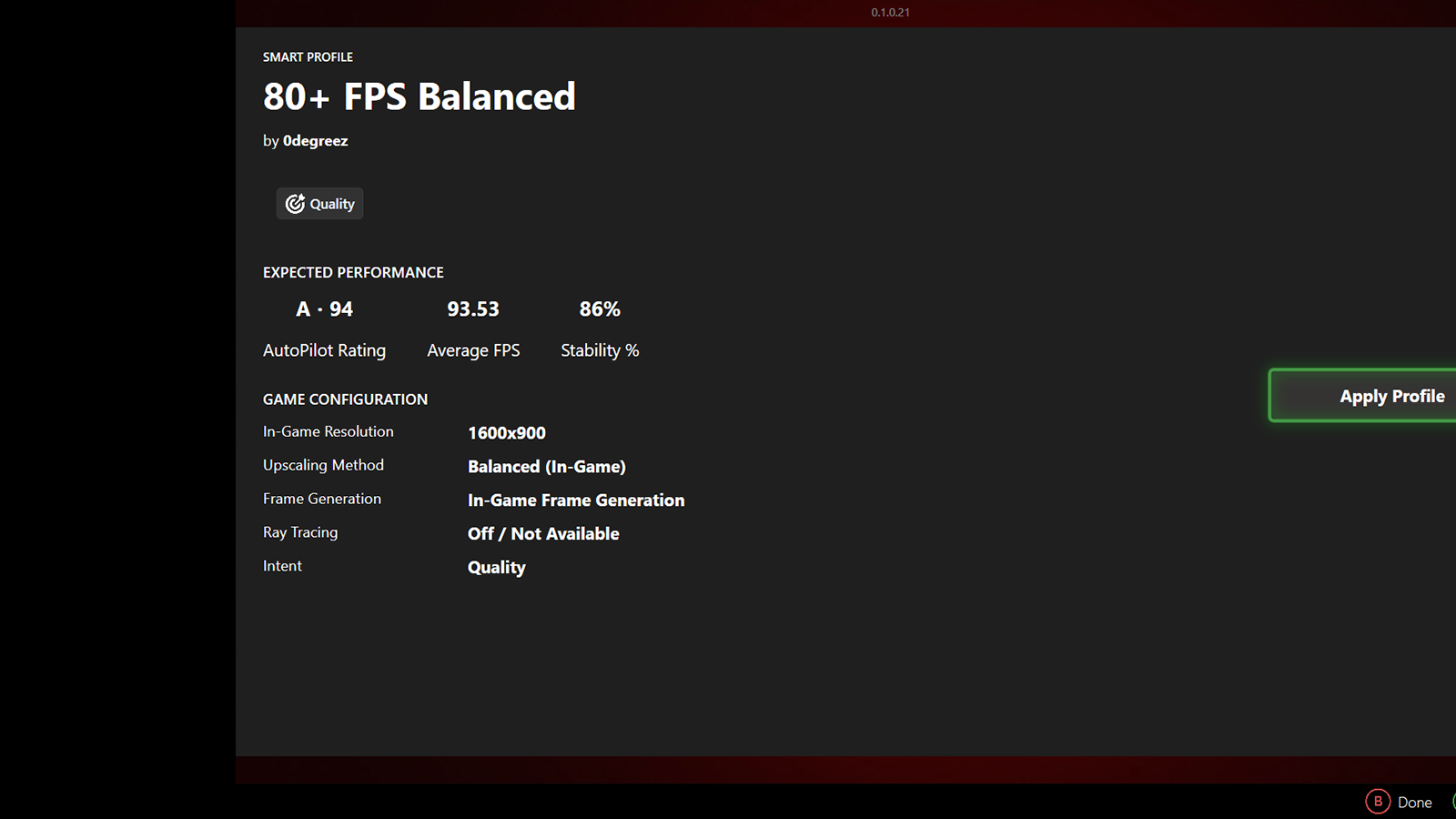
ZenDeck introduces Smart Profiles with community sharing, bringing the idea of Steam’s controller profiles to game settings and device optimization.
Instead of manually configuring every game, you can:
- Apply a pre-configured profile tailored for performance or quality
- Share your own optimized settings with others
- Benefit from configurations tested on real devices
The goal is simple:
Spend less time tweaking, more time playing
Download ZenDeck and start using Smart Profiles: https://zendeck.app

3. AutoPilot Rating (The Key Piece)
Sharing settings is useful.
But knowing which settings are actually good is what really matters.
That’s where AutoPilot Rating comes in.

What it measures
AutoPilot Rating is based on real performance data, including:
- Average FPS
- Stability (%)
- 1% low FPS
This isn’t guesswork or opinion-based.
It’s data-driven evaluation
How the rating is calculated
AutoPilot Rating combines two key factors:
- Performance → how fast the game runs (FPS)
- Stability → how smooth and consistent the experience feels
Performance measures how fast the game runs, based on average FPS.
Stability evaluates how smooth and consistent the experience feels, taking into account frame pacing, stutter, and 1% lows.
These values are combined into a single score that represents the overall gameplay experience, where:
- Performance defines the baseline
- Stability adjusts the result based on how smooth the experience is
Understanding the rating
The final result is presented as a letter grade, making it easy to understand at a glance:
- A → Very smooth experience
- B → Good, with minor inconsistencies
- C → Playable, but noticeable drops or instability
- D → Poor performance, not recommended
What a good score means
A higher AutoPilot Rating generally means:
- More stable gameplay
- Better frame consistency
- A smoother overall experience
It helps you quickly understand:
“Will this actually run well on my device?”
Device-aware ratings
AutoPilot Rating is not universal across all devices.
It is calculated using performance data from devices similar to yours.
This means:
- A profile may have a different rating on a Steam Deck vs a ROG Ally
- Ratings are more relevant to your specific hardware class
You’re not seeing generic scores, you’re seeing results that actually apply to your device.
How it helps you choose
Instead of:
- Guessing between multiple configs
- Watching long comparison videos
You can:
- Compare profiles using real performance data
- Pick the one that best fits your preference (performance vs quality)
Why this matters
This changes how optimization works.
Instead of every user figuring things out on their own:
Optimization becomes something shared, tested, and improved over time
4. What a Smart Profile Includes
Each Smart Profile can define key performance-related settings, such as:
- In-Game Resolution
- Upscaling (In-Game or driver-based)
- Frame Generation (in-game or driver-based)
- Ray Tracing (On / Off)
- Power / GPU behavior (managed automatically by AutoPilot)
These settings are defined when a profile is created and allow ZenDeck to automatically apply performance optimizations at both the GPU and device level.
5. A Console-Like Experience
The long-term vision is simple:
No more tweaking settings every time you install a game.
With Smart Profiles and AutoPilot Rating:
- Install your game
- Apply a profile
- Start playing
Install → Apply → Play
Get started:
→ How to apply a Smart Profile
Want to contribute?
→ How to share a Smart Profile
→ How to contribute performance data for a Smart Profile
Ready to try it?
Download ZenDeck and experience Smart Profiles and AutoPilot Rating: https://zendeck.app

Leave a Reply