Before you start, you’ll need either ZenDeck 0.1.6.5 or higher or the standalone Smart Profiles app v1.0.14 or higher installed on your device.
You can download them from:
💡 Recommended experience
For the best console-like experience, we recommend using ZenDeck. ZenDeck can apply Smart Profiles and also manage supported device-side settings when launching your games, such as resolution, GPU options, and other device configuration automatically.
Apply a Smart Profile from the website
This is the recommended and easiest way to apply a Smart Profile.
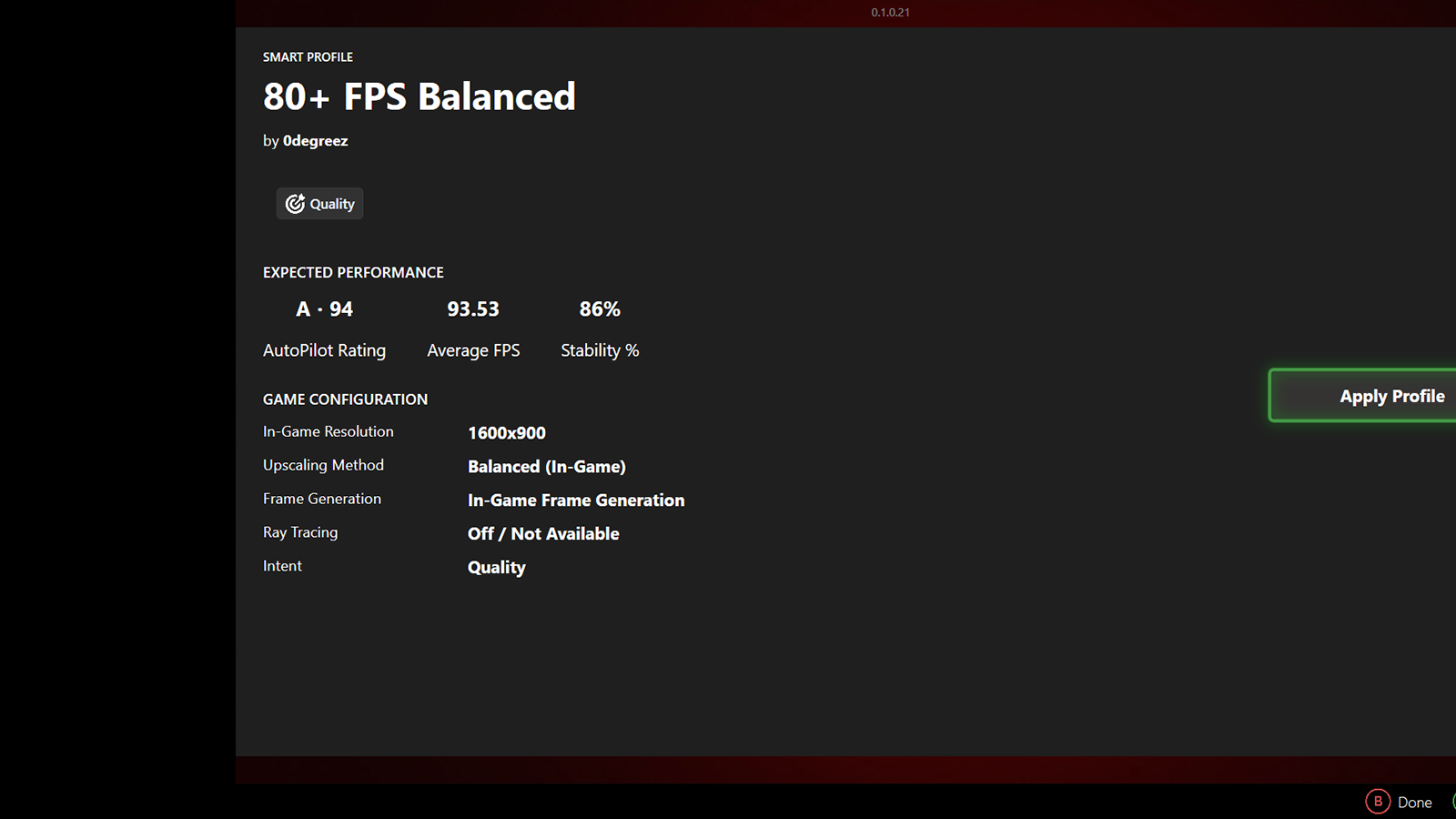
After installing ZenDeck or the standalone Smart Profiles app, you can visit the page of any available Smart Profile and click the Apply Profile button.

Your browser will ask if you want to open the link with an executable called ZDProtocolHandler.exe. Confirm that you want to open it.

The selected Smart Profile will then be applied automatically.
If you are using ZenDeck
Run ZenDeck at least once after installing it. This allows ZenDeck to scan your games and generate the required Windows configuration so Smart Profile links can be detected correctly.
If ZenDeck is already running when you click Apply Profile, ZenDeck will show that a Smart Profile is being applied and then confirm it with a toast notification.

If ZenDeck is not running, a ZenDeck instance will start automatically, apply the profile, and save the configuration.
When using ZenDeck, Smart Profiles can apply both:
- In-game settings
- Device-side configuration, such as resolution, GPU options, and other supported device settings
The next time you launch that game through ZenDeck, the device-side configuration will be applied automatically.
If you are using the standalone Smart Profiles app
⚠️ Important note about the standalone Smart Profiles app
The standalone Smart Profiles app only applies the in-game settings included in a Smart Profile. It does not manage device-side settings such as resolution, TDP, GPU options, or any other device configuration handled by ZenDeck.
Click Apply Profile on the Smart Profile page.
Allow the browser to open the link with ZDProtocolHandler.exe.
The profile will be applied automatically, and you will receive a toast notification confirming that the Smart Profile was applied.
| Feature | ZenDeck | Smart Profiles app |
|---|---|---|
| Apply in-game settings | ✅ | ✅ |
| Launch games | ✅ | ❌ |
| Device-side configuration | ✅ | ❌ |
| Resolution management | ✅ | ❌ |
| GPU options | ✅ | ❌ |
| Console-like experience | ✅ | Partial |
ZenDeck is recommended for the full console-like experience
The standalone Smart Profiles app can apply in-game settings, while ZenDeck can also handle supported device-side configuration when launching your games.
Apply a Smart Profile manually from ZenDeck
You can also apply a Smart Profile manually from inside ZenDeck.
Once installed, open ZenDeck.
To apply a Smart Profile:
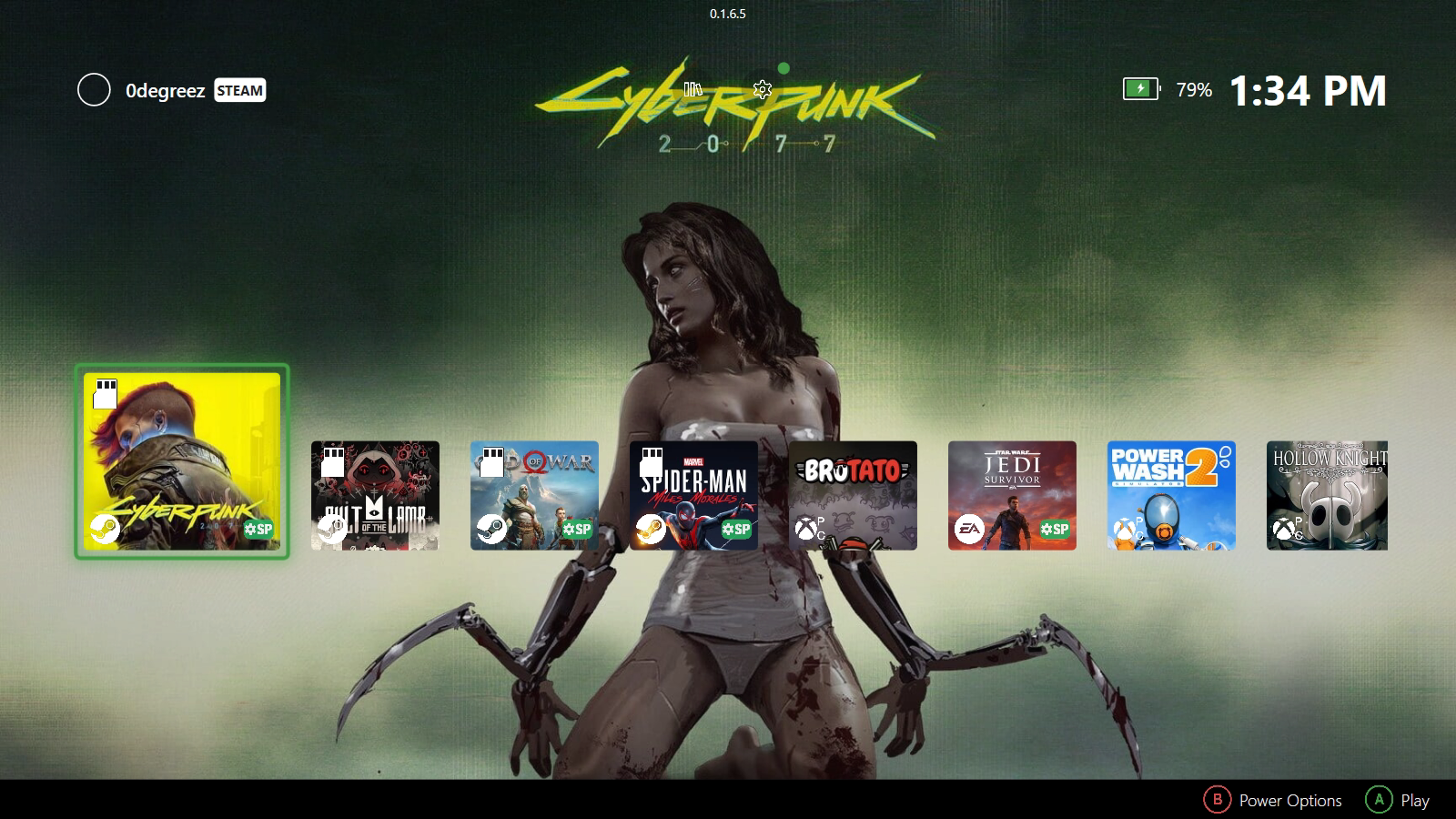
- Select a supported game (look for the green SP badge)
- Press A to open the game details
- Select SMART PROFILES
- Browse available profiles:
- Recommended profiles are shown by default
- Press the right bumper to switch to community profiles

- Select a profile and press A
- Open the profile details and press Apply Profile
ZenDeck will automatically apply the selected configuration. Go back to the game details (press B) and press Play.
Happy gaming!
Want to share your own settings with the community?