A step-by-step guide for ROG Ally, Legion Go, and other Windows handhelds
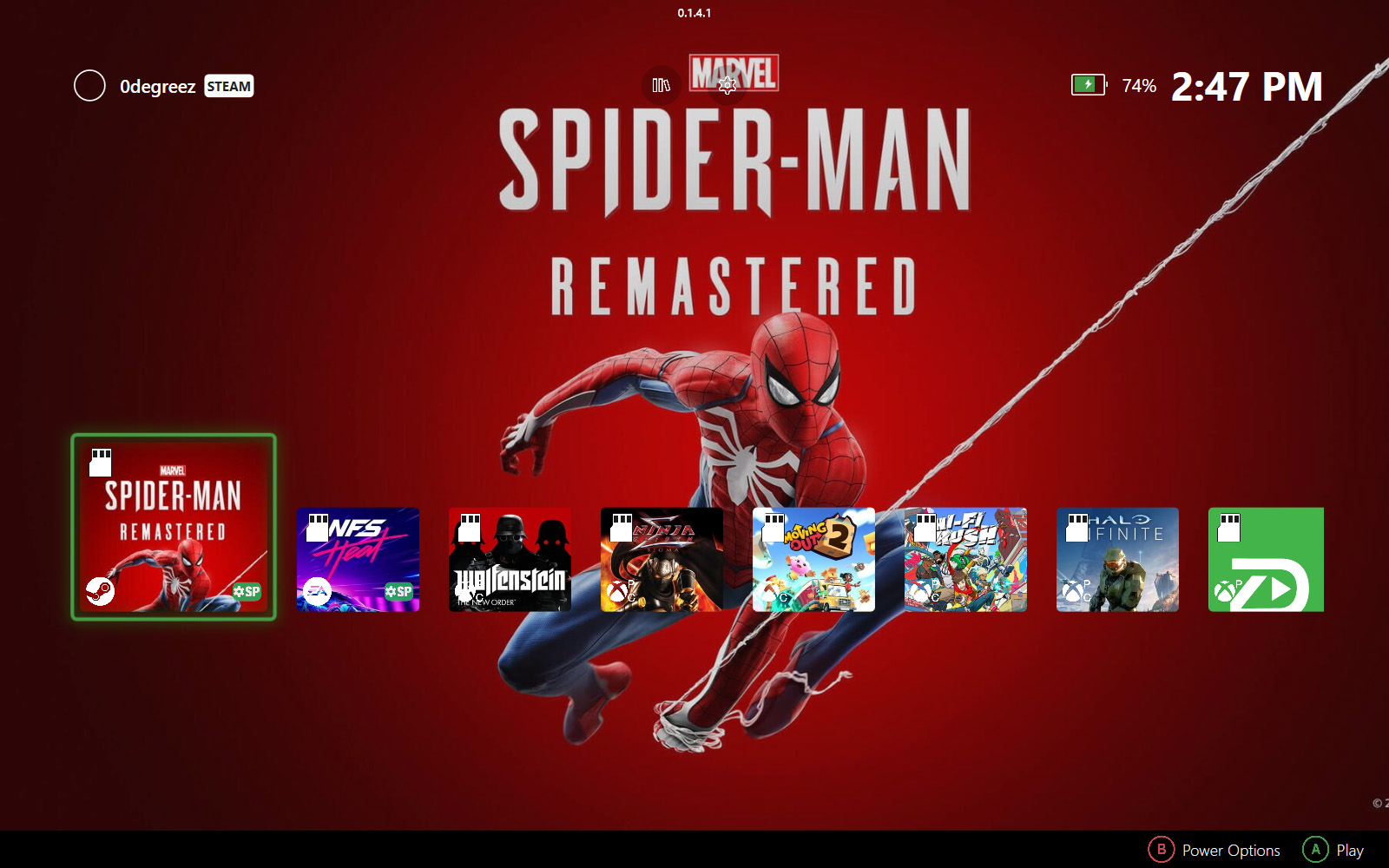
ZenDeck treats your SD cards like Nintendo Switch cartridges — insert a card and your games appear instantly, remove it and they disappear cleanly. No manual setup every time, no leftover entries in your library.
This guide walks you through setting up an SD card for the first time so ZenDeck can recognize it automatically from that point on.
What You Need
• An SD card (any size) formatted as NTFS or exFAT
• ZenDeck installed and running
• Games installed via Steam, Xbox/Game Pass, Epic, or EA App
You only need to follow these steps once per SD card. After that, ZenDeck recognizes the card automatically every time you insert it.
Setting Up with Steam
Steam requires an extra step before you can install games to an SD card: you need to register the card as a Steam Library location. This is a one-time action per card.
Step 1 — Register the SD card in Steam
1. Insert your SD card
2. Open Steam and go to — Settings → Storage
3. Click Add Drive and select your SD card from the list
4. Steam will format and prepare the card as a library location

Step 2 — Install or move games to the SD card
1. In your Steam Library, right-click a game
2. Select — Properties → Local Files → Move Install Folder
3. Choose your SD card as the destination and confirm
Or select your SD card as the install location when installing a new game.

Step 3 — Scan in ZenDeck
1. Open ZenDeck
2. Go to — Settings → Library → Scan Now
3. ZenDeck will detect the SD card and register it automatically
That’s it. The card is now recognized. Next time you insert it, your games will appear in the library right away.
⚠ Steam only works with registered drives
If you skip Step 1, Steam won’t let you install or move games to the card, and ZenDeck won’t be able to detect those games. Always register first.
Setting Up with Xbox / Game Pass, Epic, or EA
These stores don’t require any extra registration step — you can install or move games directly to the SD card.
1. Insert your SD card
2. Install a game and choose the SD card as the install location,
or move an already-installed game:
• Xbox / Game Pass: select the game → Manage → Move
• Epic Games: Library → right-click game → Move
• EA App: Library → right-click game → Move Game
3. Open ZenDeck and run a Library Scan
Settings → Library → Scan Now

⚠ Xbox / Game Pass games are device-specific
Game Pass licenses are tied to your device. Games moved to the SD card will only work on the same handheld they were installed on — you’ll see a warning in ZenDeck if you try to play them on a different device.
Adding or Removing Games Later
Any time you add or remove games from the SD card, just run another Library Scan in ZenDeck. The library will update to reflect the current contents of the card.
• Added a new game to the card → Scan Now
• Deleted or moved a game off the card → Scan Now
• No scan needed when simply inserting or removing the card to the device
Using Multiple SD Cards
Each SD card is treated as an independent cartridge with its own identity. Repeat the setup process for each card you want to use — register it (Steam only), install games, and run one scan.
After that, ZenDeck handles everything automatically based on which card is inserted.
💡 Label your cards
Consider naming each card by genre or platform (e.g., “RPGs”, “Xbox Games”) so you always know which one to grab. You can also make a custom cover for your SD card case — check out Your SD Cards Are Now Game Cartridges →.
Quick Reference
| Store | Extra step needed? | Portable across devices? |
| Steam | Yes — Add Drive in Steam Settings | ✅ Yes |
| Xbox / Game Pass | No | ⚠ Device-locked |
| Epic Games | No | ✅ Yes |
| EA App | No | ✅ Yes |
For Windows handhelds
Ready to try it?
ZenDeck turns your SD cards into instant game cartridges — insert and play, no setup every time. Built for ROG Ally, Legion Go, and Windows handhelds.
Download ZenDeck →

