Tag: ZenDeck

  • How to share a Smart Profile

    How to share a Smart Profile

    To share a Smart Profile, you need to be logged into ZenDeck using your Steam account.

    You can share profiles directly from the Smart Profiles widget in the Xbox Game Bar.

    New to Smart Profiles? → What are Smart Profiles

    Sign in with your Steam account

    Make sure you’re signed in with your Steam account.

    If you’re not logged in, the widget will prompt you and open an overlay in ZenDeck where you can scan a Steam QR code to continue.

    Start sharing your profile

    Press “Share Smart Profile”

    You’ll be taken to a screen where you can fill in the profile details.

    Configure your profile

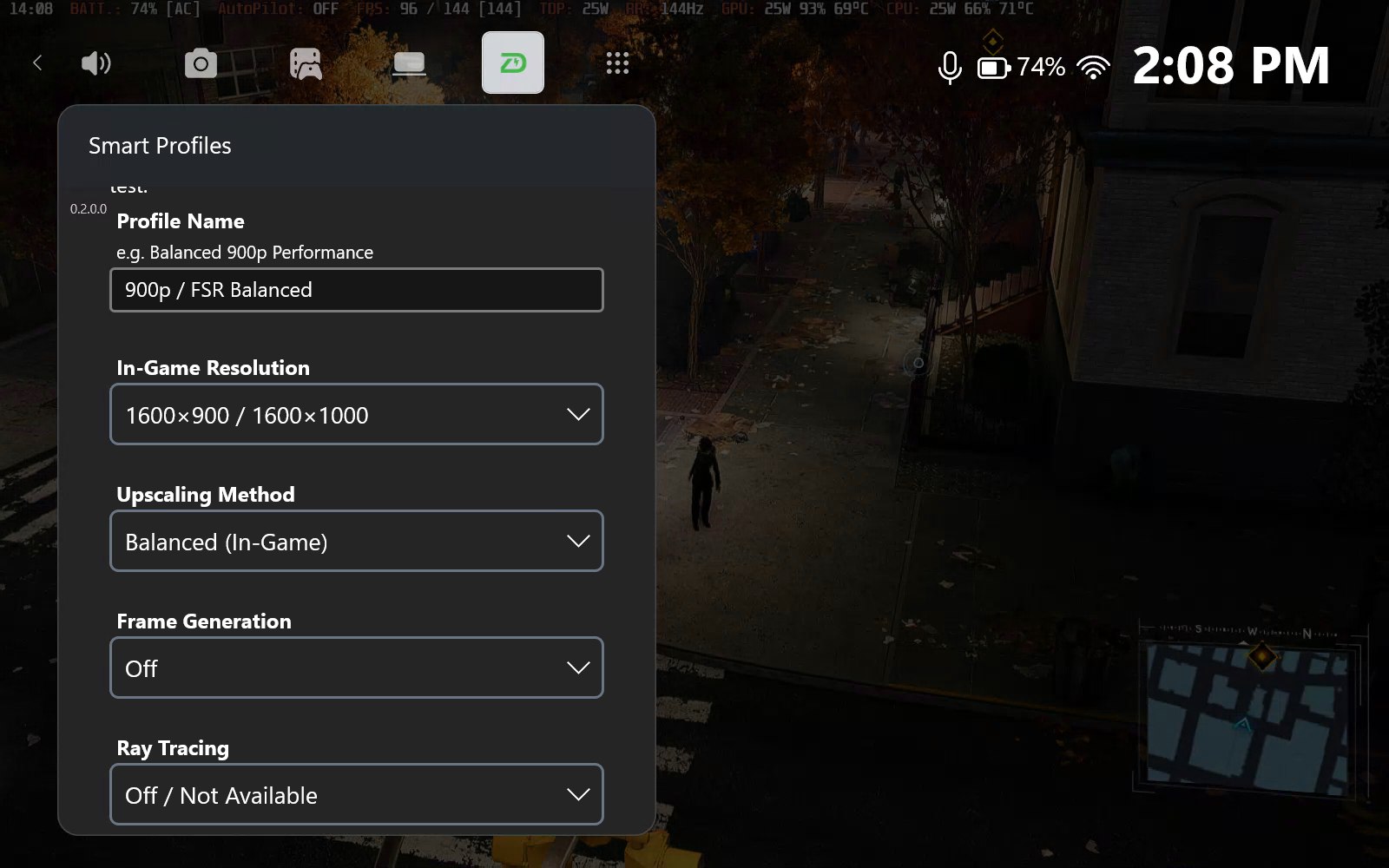
    ZenDeck Smart Profiles creation screen showing in-game resolution, upscaling, frame generation and ray tracing settings
    Define your game settings and share your own Smart Profile with the community.

    You’ll be asked to provide the following:

    • Profile title
      It’s recommended to include details like the upscaler used (FSR, XeSS, etc.)
    • Resolution
      The in-game resolution you are using
    • Upscaling method
      • Select In-Game <Quality> if the game uses built-in upscaling (e.g. FSR Performance or XeSS Balanced)
      • Select Driver if you want Smart Profiles to enable RSR
    • Frame Generation
      Indicates whether frame generation is being used
      • Also allows Smart Profiles to enable AFMF when using driver-based frame generation
    • Ray Tracing
      Whether ray tracing is enabled in-game
    • Graphics intent
      Defines if the profile is focused on:
      • Performance
      • Visual quality
    • Device Compatibility
      • Universal Tier → works on most devices
      • Extended Tier → intended for high-performance devices only

    Devices limited to Universal Tier cannot create Extended Tier profiles

    Press Continue to proceed.

    (Optional) Submit a performance test

    You’ll have the option to run a performance validation.

    This step is optional, but highly recommended as it helps others identify the best-performing profiles.

    ⚠️ To submit performance data, ZenDeck must be properly configured to manage TDP.

    If you haven’t set it up yet, you can follow this guide:
    How to Install ZenDeck from Scratch (Beginner Friendly Guide)

    To start the test:

    • Press Start Validation
    • The test runs for 5 minutes

    ⚠️ It is recommended not to use Lossless Scaling during this test

    Once started:

    • You can close the Game Bar
    • Continue playing normally
    AutoPilot analyzing performance overlay during gameplay showing FPS and progress on a PC handheld
    AutoPilot analyzes real gameplay performance in the background while you play.

    Performance analysis

    During the test, an overlay will appear showing:

    “AutoPilot is analyzing performance…”

    Along with a progress percentage.

    When the test finishes, you’ll see:

    “Performance capture complete. Open Smart Profiles widget to continue.”

    Review results

    Reopen the Smart Profiles widget.

    ZenDeck AutoPilot Rating performance summary showing score, FPS and stability for a Smart Profile on a PC handheld
    Review your AutoPilot Rating with real performance data before publishing your Smart Profile.

    You’ll see:

    • The AutoPilot Rating for your device
    • Your captured performance data

    You can:

    • Adjust your game settings
    • Re-run the test as many times as you want

    ⚠️ If you change settings, make sure to update the profile details accordingly

    Publish your profile

    Once you’re ready:

    • Press “Publish Profile”
    • Or “Publish Anyway” if you skipped the performance test

    🎉 That’s it!

    Your Smart Profile will now be available for other players to use.

    Want to contribute performance data to your profile?
    → How to contribute performance data for a Smart Profile

  • How to apply a Smart Profile

    How to apply a Smart Profile

    Before you start, you’ll need either ZenDeck 0.1.6.5 or higher or the standalone Smart Profiles app v1.0.14 or higher installed on your device.

    You can download them from:

    zendeck.app

    💡 Recommended experience

    For the best console-like experience, we recommend using ZenDeck. ZenDeck can apply Smart Profiles and also manage supported device-side settings when launching your games, such as resolution, GPU options, and other device configuration automatically.

    Apply a Smart Profile from the website

    This is the recommended and easiest way to apply a Smart Profile.

    After installing ZenDeck or the standalone Smart Profiles app, you can visit the page of any available Smart Profile and click the Apply Profile button.

    ZenDeck Smart Profile page for Cyberpunk 2077 showing the Apply Profile button and profile details for a 720p Balanced configuration.
    Click Apply Profile on any Smart Profile page to automatically apply optimized settings using ZenDeck or the standalone Smart Profiles app.

    Your browser will ask if you want to open the link with an executable called ZDProtocolHandler.exe. Confirm that you want to open it.

    Browser prompt asking permission to open ZDProtocolHandler.exe from a ZenDeck Smart Profile page.
    When prompted, click Open to allow ZenDeck or the standalone Smart Profiles app to apply the selected Smart Profile automatically.

    The selected Smart Profile will then be applied automatically.

    If you are using ZenDeck

    Run ZenDeck at least once after installing it. This allows ZenDeck to scan your games and generate the required Windows configuration so Smart Profile links can be detected correctly.

    If ZenDeck is already running when you click Apply Profile, ZenDeck will show that a Smart Profile is being applied and then confirm it with a toast notification.

    ZenDeck showing a toast notification confirming that a Smart Profile was applied for Cyberpunk 2077.
    ZenDeck shows a toast notification when a Smart Profile has been applied successfully for your device.

    If ZenDeck is not running, a ZenDeck instance will start automatically, apply the profile, and save the configuration.

    When using ZenDeck, Smart Profiles can apply both:

    • In-game settings
    • Device-side configuration, such as resolution, GPU options, and other supported device settings

    The next time you launch that game through ZenDeck, the device-side configuration will be applied automatically.

    If you are using the standalone Smart Profiles app

    ⚠️ Important note about the standalone Smart Profiles app

    The standalone Smart Profiles app only applies the in-game settings included in a Smart Profile. It does not manage device-side settings such as resolution, TDP, GPU options, or any other device configuration handled by ZenDeck.

    Click Apply Profile on the Smart Profile page.

    Allow the browser to open the link with ZDProtocolHandler.exe.

    The profile will be applied automatically, and you will receive a toast notification confirming that the Smart Profile was applied.

    FeatureZenDeckSmart Profiles app
    Apply in-game settings
    Launch games
    Device-side configuration
    Resolution management
    GPU options
    Console-like experiencePartial

    ZenDeck is recommended for the full console-like experience
    The standalone Smart Profiles app can apply in-game settings, while ZenDeck can also handle supported device-side configuration when launching your games.

    Apply a Smart Profile manually from ZenDeck

    You can also apply a Smart Profile manually from inside ZenDeck.

    Once installed, open ZenDeck.

    To apply a Smart Profile:

    • Select a supported game (look for the green SP badge)
    • Press A to open the game details
    • Select SMART PROFILES
    • Browse available profiles:
      • Recommended profiles are shown by default
      • Press the right bumper to switch to community profiles
    ZenDeck Smart Profiles list showing recommended and community profiles for a game on a PC handheld
    Browse recommended and community Smart Profiles and instantly apply optimized settings for your game.
    • Select a profile and press A
    • Open the profile details and press Apply Profile

    ZenDeck will automatically apply the selected configuration. Go back to the game details (press B) and press Play.

    Happy gaming!

    Want to share your own settings with the community?

    → How to share a Smart Profile